

Picture This:
You’re writing a paper that needs at least 8 sources, and you’ve got 7. After some online sleuthing, you’ve managed to find an article that would be absolutely perfect for your paper when disaster strikes…it isn’t available at FSU!
Sure you can find another article, but you really don’t want to have to go back to the drawing board for your resources. That’s when you see a link that says “Article Request Through Interlibrary Loan”, but what does that mean? How much work will this take and how will you get the article?!?
Never fear; moments like these are exactly why Resource Sharing at FSU Libraries is here! Resource Sharing at FSU Libraries includes Interlibrary Loan (ILL) and UBorrow, offering alternate ways to acquire materials that are not currently available at FSU Libraries.
This blog post will be broken up into four parts: the first is searching for materials in OneSearch; then placing a request; the third is checking the details of a request once placed; and finally registering or updating your account info in ILLiad.
To skip to a section of the blog post, click one of the links below:
Searching in OneSearch
You can search FSU Libraries using our search engine OneSearch, which is accessible at: lib.fsu.edu. When you first open the website, the search bar is located in the top center, as seen below:

If you haven’t already, try searching for the item you’re looking for in OneSearch to make sure that FSU doesn’t have access. Let’s see what happens when we search an item that FSU does not have immediate access to:

The first key to a successful search is: always make sure you are signed in. This ensures you have full access to all materials available at FSU and allows you to place requests through UBorrow or ILL!
Since the search does not display any results for the item we’re looking for, let’s try searching through UBorrow.

Alas, no such luck in finding this title! It’s times like these that we switch to ILL! To do this, switch the search back to the first results in OneSearch, but this time, select the “Expand My Results” button that’s to the left of the results.

Once you click this, it will automatically refresh the page with additional results!
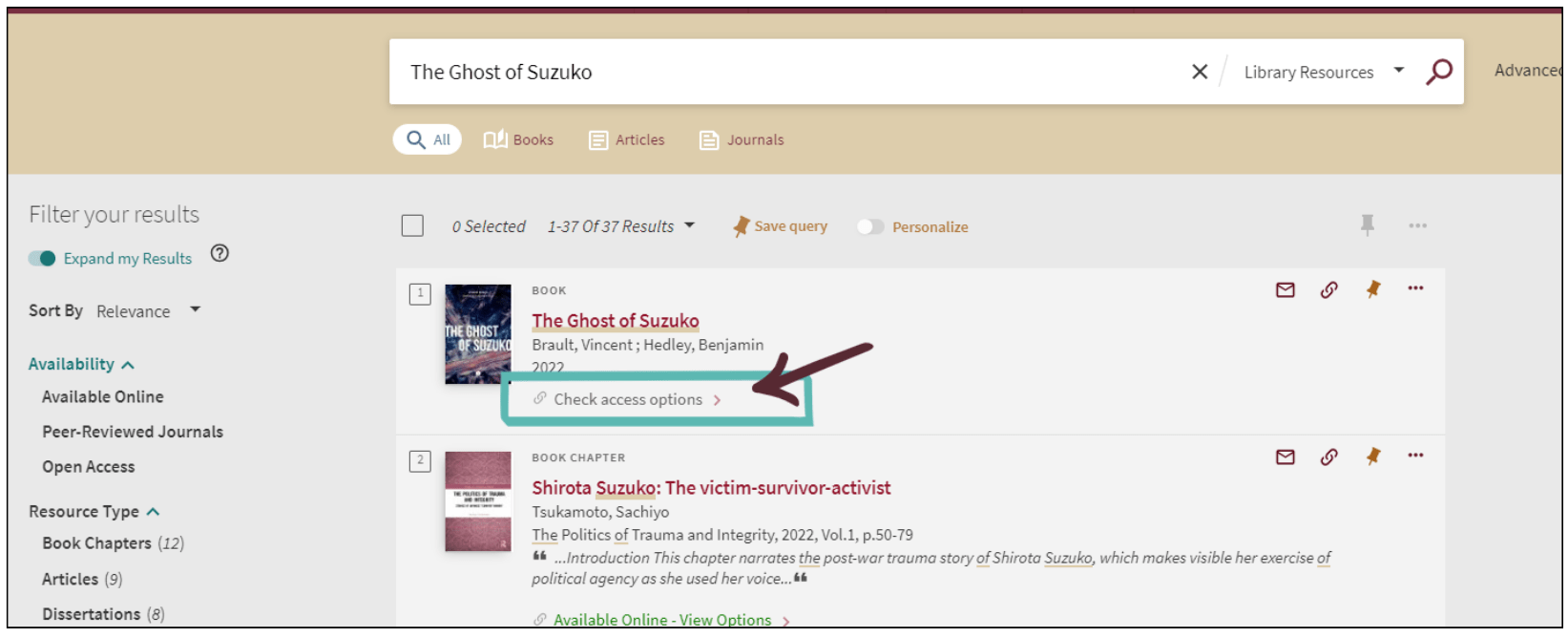
And there the item is, right at the top! You’ll notice that the only link below the record for this item says “Check Access Options.” When clicked, it will open the record for the item, where you can view access options.

Under the “How To Get It” section and under “Additional Services,” you’ll find the following request option “Book request through Interlibrary Loan.” Clicking this link will open up an ILL request form with the information automatically populated based on the item’s record.
Because this item is a physical book, the link will open the ILL form for a a Book Request. If it was for an article or book chapter, it would instead say “Article request through Interlibrary Loan.”
NOTE: Remember, if you’re not signed in, this request option won’t appear. Instead, under How To Get It” will be a box prompting you for your FSU credentials to log in.
Placing a Request
Once you’ve clicked the “Book Request Through Interlibrary Loan” link, you’ll see a screen that looks like this:

As shown above, the required information from the record has already been added to the request! Always review the following required fields to make sure the information is correct:
Author/Editors
Title
ISBN

While some fields aren’t required, the more information you add, like the OCLC number for example, the more likely it is to be filled quickly! If the information is correct, some requests can be be processed automatically by the ILLiad system. The more a request needs review, the longer it will take until it is filled.
The last step to placing any request is to click the “Submit Request” button at the bottom of the page, as seen below:

NOTE: You do not have to place ILL requests directly through OneSearch!! If you have the required information for a title you can place a new request by clicking “ILL Request” at the top of OneSearch, which is shown in the picture below:

Clicking the “ILL Request” link will generate a blank ILL request form to fill out.
You can also place requests by accessing your ILLiad account from the “Find and Borrow” page on lib.fsu.edu, where you can specify if it’s a Book Chapter, Article or Book you are requesting through a drop-down under “Make a Request.”

Once the request is placed, it will appear under your “Outstanding Requests” or “Current Requests.”
NOTE: If you are prompted to update your account information, it just means you need to make sure all the information is filled out for your ILLiad account. To jump ahead to this portion of this blog, click this link: Registering Your ILLiad Account
Checking Your Request Status
Every time you place a request, the details of the transaction and the history of the request stay in your account. You can check the status of your active requests, review the history of all previous request, and even see if an item is eligible for renewal – all from your request history!
To check the status of active requests, log in to your ILLiad account.
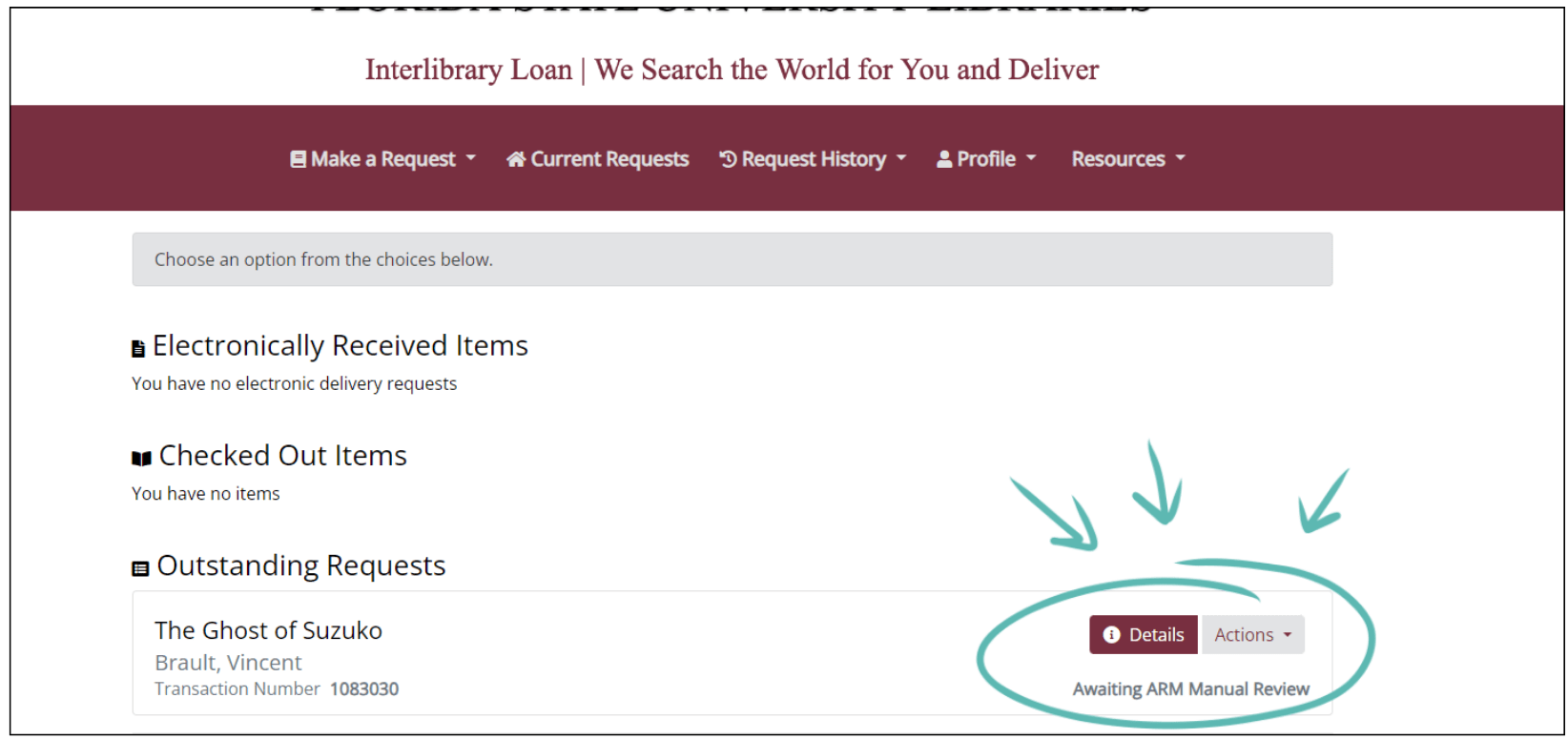
To view details for any “Outstanding Requests”, click the “Details” button that is located next to the requested item’s title. This will bring you to a screen that looks like this:

Options that are located at the top of each request are “Edit Request,” “Cancel Request,” “Renew,” and “Resubmit Request.” Scroll to the bottom of the request to see all the details regarding the status.
NOTE: If a button is greyed out, such as the “Renew” option for the request above, it means you can’t complete that action currently.

For the screenshot above, we can see when the request was submitted, and each step that has occurred in the requesting process. If you are curious what a status means, please refer to this FAQ to see a list of what they look like: What is the status of my ILL active request?
The details for each item will always remain on your account. To view completed and cancelled requests, you can choose from the drop-down under “Request History” at the top of the page.
Registering Your ILLiad Account
Unlike ILLs, FSU owned library requests and UBorrow requests are both accessible through your regular library account for renewals and status updates. You can access your regular library account by going to the website (lib.fsu.edu) and clicking the icon in the upper righthand corner.
You can also follow this link: View Your FSU Library Account

To access your ILLiad account, you can click the “Find and Borrow” icon on the home page.

This will lead you to another page that has all of your search options, as seen below. Under ILL Search, select the link “Request ILL and other Options” to open your account.

If this is the first time you’re logging into ILLiad, you will be prompted to complete registration before you are able to place a request. After logging in with your FSU Credentials, the screen will look like this:

Some of your information will already be entered in some fields based on your FSU Login, and can’t be changed. These fields are:
First Name
Last Name
FSUID E-Mail Address
There are more fields you’ll have to fill out in order to fully register your account. Any mandatory field is noted by the (required) text next to the field’s title.

NOTE: Make sure your “Status” always matches your Academic Status, and that your “Department” matches your current Academic Department!
ADDITIONAL FIELDS TO CONSIDER: If you are already registered for FSU’s Library Express Delivery Service (LEDS) and will always want to have your materials delivered through LEDS, you can set your “Pickup Location” to LEDS. Otherwise, set it to the library from which you would like to pick up or view your requested materials.
You can change this later on by logging in to ILLiad and accessing your account.

THE MOST IMPORTANT PART OF THE REGISTRATION PROCESS: CLICKING SUBMIT
After filling out all required fields you must click the “Submit Information” button, which is highlighted above. If you leave before finishing, your account will be incomplete and it will directly impact your ability to receive the materials you request.
Conclusion
Resource Sharing is just one of the many teams here to help you on your academic journey at FSU Libraries. If you have questions regarding ILL or UBorrow, you can visit the FSU Libraries page here: University Libraries Homepage , or contact us at lib-borrowing@fsu.edu.
Remember, at FSU Libraries Resource Sharing searches the world for you, and delivers!

Leave a Reply